x
| Tip: Make a new
folder for each project and choose this folder when you create a new
Lever project. If you use one folder for all your projects, Lever may
get confused (and so might you). |
- Start a new Lever project using the default Lever device LC4256ZC (Part name LC4256ZC-45T100C).
- Open the schematic editor, and go to Schematic Editor Help (after clicking Help in the menu bar).
- Under Concepts, go to Schematic Library Support.
- In the right-hand pane under Design Guide and Reference Manuals, click ispLSI Macro Library Reference Manual.
- Once the manual PDF file opens, click the plus sign to the left of ispLSI Macro Library (in the left-hand pane).
- Find a binary up-counter that has four outputs and no data inputs. (In other words, the simplest 4-bit counter).
- CBD stands for counter, binary, down
- CBU stands for counter, binary, up
- CBU12 means that the counter version is 1 and the number of bits is 2.
- C BU28 means that the counter version is 2 (more complex than version 1), and the number of bits is 8
- From what you learned from the Macro Library Reference Manual,
determine which of the counter's input pins needs to be connected to
VCC and which need to be connected to GND, and connect them that way.
- To connect a pin to VCC (the positive supply voltage) or GND, assign it a net name of VCC or GND.
- VCC and GND will have boxes around them meaning that these points are connected to the actual VCC and GND.
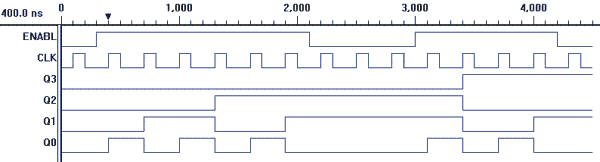
- To make the circuit behave as shown in the timing diagram,
you'll need to use a gate to either let the clock pulses reach the
counter or not, depending upon the status of ENABL.
- Create input pins labeled ENABL and CLK. (ENABL stands for enable.)
- Create output pins labeled Q0, Q1, Q2, and Q3.
- Each pin on a macro must either be connected to something, or else you need to use the Pin Attribute tool (an AND gate with an A beside it) to change the OpenOK attribute to OK.
- The counter's CAO pin needs to be have its OpenOK attribute changed.
- To do this, click the Pin Attribute tool, and then click the CAO pin.
- Next, put a check mark in the List All Attributes box.
- Click OpenOK=.
- In the box now labeled OpenOK, type OK.
- Click the red X to shut down the Pin Attributes window.
- When you're ready to simulate the circuit, download the test vector file.
|

